Photoshopで選択したグループを反転コピーするスクリプトを紹介します。
左右対称のデザインやLive2Dの素材作成に役立ちます。
2026年10月19日に、Photoshop 2026(27.11.0)とWindows 11 Proで記事のコードを実行し、できあがるレイヤーを確かめました。
コピーは1枚のレイヤーに結合され、カンバスの中央を軸に左右反転した位置に、新しいグループに入って置かれました。
元のグループはそのまま残ります。
ただし、非表示のレイヤーはコピーに入りません。
2026年10月20日にコードを直しました。
通常のレイヤーを選ぶと元のレイヤーが反転して移動する、空のグループで複製が残る、グループ名の指定が効かない、パネルのグループがすべて閉じる、という不具合がありました。
詳しくは「Photoshop 2026で実行した結果」にまとめています。
スクリプトを使用するメリット
- 選択したグループを反転コピーできる
- 左右対称のパーツを効率よく作成できる
- ショートカットを設定すればキー操作で実行できる
スクリプトで選択グループを反転コピーする手順
このスクリプトを使うと、選択したグループをすばやく反転コピーできます。
STEP.1 スクリプトを保存する
- 先にPSDを複製してください。コピー側は1枚に結合され、元の選択範囲は最後に解除されます。途中エラーからの完全な復元を保証するコードではありません。そのうえで下記のコードをテキストエディタなどに貼り付けて保存します。
Photoshopのほかの操作は、まとめからご覧いただけます。

CGM_ReverseCopyGroup.jsx
function ReverseCopy() {
  cTID = function (s) {
    return app.charIDToTypeID(s);
  };
  sTID = function (s) {
    return app.stringIDToTypeID(s);
  };
  //選んでいるのがグループだけか確かめる
  function checkGroups() {
    var ref1 = new ActionReference();
    ref1.putProperty(cTID('Prpr'), sTID("targetLayersIDs"));
    ref1.putEnumerated(cTID('Dcmn'), cTID('Ordn'), cTID('Trgt'));
    var list = executeActionGet(ref1).getList(sTID("targetLayersIDs"));
    if (list.count == 0) throw new Error("no layer");
    for (var i = 0; i < list.count; i++) {
      var ref2 = new ActionReference();
      ref2.putIdentifier(cTID('Lyr '), list.getReference(i).getIdentifier());
      var section = executeActionGet(ref2).getEnumerationValue(sTID("layerSection"));
      if (section != sTID("layerSectionStart")) throw new Error("not group");
    }
  };
  //複製したものを削除
  function deleteCopy() {
    var desc1 = new ActionDescriptor();
    var ref1 = new ActionReference();
    ref1.putEnumerated(cTID('Lyr '), cTID('Ordn'), cTID('Trgt'));
    desc1.putReference(cTID('null'), ref1);
    executeAction(cTID('Dlt '), desc1, DialogModes.NO);
  };  //グループの複製
  function step1(enabled, withDialog) {
    if (enabled != undefined && !enabled) return;
    var dialogMode = (withDialog ? DialogModes.ALL : DialogModes.NO);
    var desc1 = new ActionDescriptor();
    var ref1 = new ActionReference();
    ref1.putEnumerated(cTID('Lyr '), cTID('Ordn'), cTID('Trgt'));
    desc1.putReference(cTID('null'), ref1);
    var desc2 = new ActionDescriptor();
    desc2.putUnitDouble(cTID('Hrzn'), cTID('#Prc'), 0);
    desc2.putUnitDouble(cTID('Vrtc'), cTID('#Prc'), 0);
    desc1.putObject(cTID('T   '), cTID('Ofst'), desc2);
    executeAction(sTID('copyEvent'), desc1, dialogMode);
  };  //レイヤーを結合
  function step2(enabled, withDialog) {
    if (enabled != undefined && !enabled) return;
    var dialogMode = (withDialog ? DialogModes.ALL : DialogModes.NO);
    executeAction(sTID('mergeLayersNew'), undefined, dialogMode);
  };
  //ドキュメント全体を範囲選択
  function step3(enabled, withDialog) {
    if (enabled != undefined && !enabled) return;
    var dialogMode = (withDialog ? DialogModes.ALL : DialogModes.NO);
    var desc1 = new ActionDescriptor();
    var ref1 = new ActionReference();
    ref1.putProperty(cTID('Chnl'), sTID("selection"));
    desc1.putReference(cTID('null'), ref1);
    desc1.putEnumerated(cTID('T   '), cTID('Ordn'), cTID('Al  '));
    executeAction(sTID('set'), desc1, dialogMode);
  };
  //変形で左右反転
  function step4(enabled, withDialog) {
    if (enabled != undefined && !enabled) return;
    var dialogMode = (withDialog ? DialogModes.ALL : DialogModes.NO);
    var desc1 = new ActionDescriptor();
    var ref1 = new ActionReference();
    ref1.putEnumerated(cTID('Lyr '), cTID('Ordn'), cTID('Trgt'));
    desc1.putReference(cTID('null'), ref1);
    desc1.putEnumerated(cTID('FTcs'), cTID('QCSt'), sTID("QCSAverage"));
    var desc2 = new ActionDescriptor();
    desc2.putUnitDouble(cTID('Hrzn'), cTID('#Prc'), 0);
    desc2.putUnitDouble(cTID('Vrtc'), cTID('#Prc'), 0);
    desc1.putObject(cTID('Ofst'), cTID('Ofst'), desc2);
    desc1.putUnitDouble(cTID('Wdth'), cTID('#Prc'), -100);
    desc1.putEnumerated(cTID('Intr'), cTID('Intp'), sTID("bicubicAutomatic"));
    executeAction(sTID('transform'), desc1, dialogMode);
  };
  //グループ化
  function step5(enabled, withDialog) {
    if (enabled != undefined && !enabled) return;
    var dialogMode = (withDialog ? DialogModes.ALL : DialogModes.NO);
    var desc1 = new ActionDescriptor();
    var ref1 = new ActionReference();
    ref1.putClass(sTID("layerSection"));
    desc1.putReference(cTID('null'), ref1);
    var ref2 = new ActionReference();
    ref2.putEnumerated(cTID('Lyr '), cTID('Ordn'), cTID('Trgt'));
    desc1.putReference(cTID('From'), ref2);
    var desc2 = new ActionDescriptor();
    desc2.putString(cTID('Nm  '), "Group");
    desc1.putObject(cTID('Usng'), sTID("layerSection"), desc2);
    desc1.putInteger(sTID("layerSectionStart"), 678);
    desc1.putInteger(sTID("layerSectionEnd"), 679);
    executeAction(sTID('make'), desc1, dialogMode);
  };
  //範囲選択を解除
  function step6(enabled, withDialog) {
    if (enabled != undefined && !enabled) return;
    var dialogMode = (withDialog ? DialogModes.ALL : DialogModes.NO);
    var desc1 = new ActionDescriptor();
    var ref1 = new ActionReference();
    ref1.putProperty(cTID('Chnl'), sTID("selection"));
    desc1.putReference(cTID('null'), ref1);
    desc1.putEnumerated(cTID('T   '), cTID('Ordn'), cTID('None'));
    executeAction(sTID('set'), desc1, dialogMode);
  };
  checkGroups();
  step1();
  try {
    step2();
    step3();
    step4();
  } catch (e) {
    deleteCopy();
    step6();
    throw e;
  }
  step5();
  step6();
};
ReverseCopy.main = function () {
  ReverseCopy();
};

function CGM_ReverseCopyGroup() {
  try {
    ReverseCopy.main();
  } catch (e) {
    alert("グループを選択してください");
  }
}

var doc = activeDocument;
doc.suspendHistory("反転コピー", "CGM_ReverseCopyGroup();");
このコードは、最初に選んでいるレイヤーがすべてグループかを確かめ、グループ以外が含まれていれば何もせずに警告を出します。
次に、選んでいるグループを複製し、複製を1枚のレイヤーに結合します。
続いてカンバス全体を選択して、幅を -100% に変形し、カンバスの中央を軸に左右反転します。
最後に反転したレイヤーを「Group」という名前のグループに入れ、選択範囲を解除します。
レイヤーパネルのグループの開閉は変えず、新しいグループは開いた状態でできます。
結合や反転の途中で止まったとき(中身の無いグループなど)は、複製したものを削除し、選択範囲を解除してから警告を出します。
処理の全体が suspendHistory の中で動くので、ヒストリーには「反転コピー」が1つだけ積まれます。
今回確認した空グループなどでは、警告後に複製は残らず、ヒストリーに「反転コピー」が1つ積まれました。すべてのエラーで同じように復旧することは未確認です。
処理内部で捕捉したエラーは、原因にかかわらず「グループを選択してください」と表示されます。ただし文書を開いていない場合のエラーは、この処理の外側で発生します。結合・反転の後のグループ化などで失敗した場合は、途中結果が残る可能性もあります。
CGM_ReverseCopyGroup.jsxを以下のフォルダに保存します。
C:\Program Files\Adobe\Adobe Photoshop CC\Presets\Scripts\上のパスは古い版の表記です。
Photoshop 2026(Windows)では、C:\Program Files\Adobe\Adobe Photoshop 2026\Presets\Scripts にこのフォルダーがあります。
2026年10月の確認では、このフォルダーへの配置と再起動は試していません。
- Photoshopを再起動します。
STEP.2 スクリプトを実行する
- [ファイル] → [スクリプト] → [CGM_ReverseCopyGroup]を選択します。
- 選択したグループが反転コピーされます。
10月19日の旧コードは、Scriptsフォルダーに置かず、[ファイル]→[スクリプト]→[参照…]から実行しました。10月20日の修正版は別のスクリプトから実行し、警告を文字の記録に置き換えた版で確認しています。掲載の修正版を[参照…]から実行する操作と警告ダイアログは未確認です。
グループを選んで実行したときは、確認の窓や完了の表示は出ませんでした。
文書を開いていないときに実行すると、「エラー 1302: 該当する要素はありません」(ライン: 110)の窓が出て止まりました。
直したコードでは、同じエラーがライン: 131で出ることを、別のスクリプトから実行して確かめました。
ショートカットを設定する方法
- [編集] → [キーボードショートカット]を開きます。
- 対象を[アプリケーションメニュー]にし、[ファイル]内の[CGM_ReverseCopyGroup]を探します。先にScriptsフォルダーへの配置と再起動を済ませ、通常のメニューに名前が表示されることを確認します。
- ショートカット欄に使用したいキーを入力します。設定画面で受け付けられる組み合わせを使い、既存の割り当てと競合する場合は別のキーを選びます。
- 変更したショートカットセットを保存し、複製したPSDでグループを選んでキーを押します。元グループが残り、反対側の位置に結合されたコピーができたか確認してください。この設定操作は今回実機では試していません。
おまけ│アクションで反転コピーを作成する手順(未検証)
① 左側を削除
- 新規レイヤーを作成
- [Alt + Shift + [ ] で下のレイヤーを追加選択
- [Ctrl + E] で統合
- [Ctrl + A] で全選択
- [選択範囲] → [選択範囲を変形] → ピボットを左中央 → Wを50%にして左側を選択
- [Delete] で左側を削除
- [Ctrl + D] で選択解除
② 右側を反転コピー
- [Ctrl + A] で全選択
- [Ctrl + J] でレイヤーを複製
- [Ctrl + A] で全選択
- [選択範囲] → [選択範囲を変形] → ピボットを右中央 → Wを50%にして右側を選択
- [Ctrl + T] で変形 → ピボットを左中央 → Wを-100%にして左側へ反転
- [Ctrl + E] で下のレイヤーと結合
- [Ctrl + D] で選択解除
Photoshop 2026で実行した結果
2026年10月20日に、コードを直しました。
この節の2026年10月19日の結果は、直す前のコードで確かめたものです。
直したコードの結果は、この節の最後の「直したコードで確かめた結果」にまとめています。
2026年10月19日に、Photoshop 2026(27.11.0)とWindows 11 Proで、直す前の記事のコードを書き換えずにCGM_ReverseCopyGroup.jsxとして保存し、[ファイル]→[スクリプト]→[参照…]から5回実行しました。
練習用の文書(横800×縦500ピクセル、中央に縦線)と、レイヤーを選んだ状態は別のスクリプトで用意したので、その部分は確認に含めていません。
レイヤーの位置・中身・グループの開閉・ヒストリーは、実行の前後にスクリプトで読み取って比べました。
コピーはカンバスの中央を軸に反転し、1枚のレイヤーになる
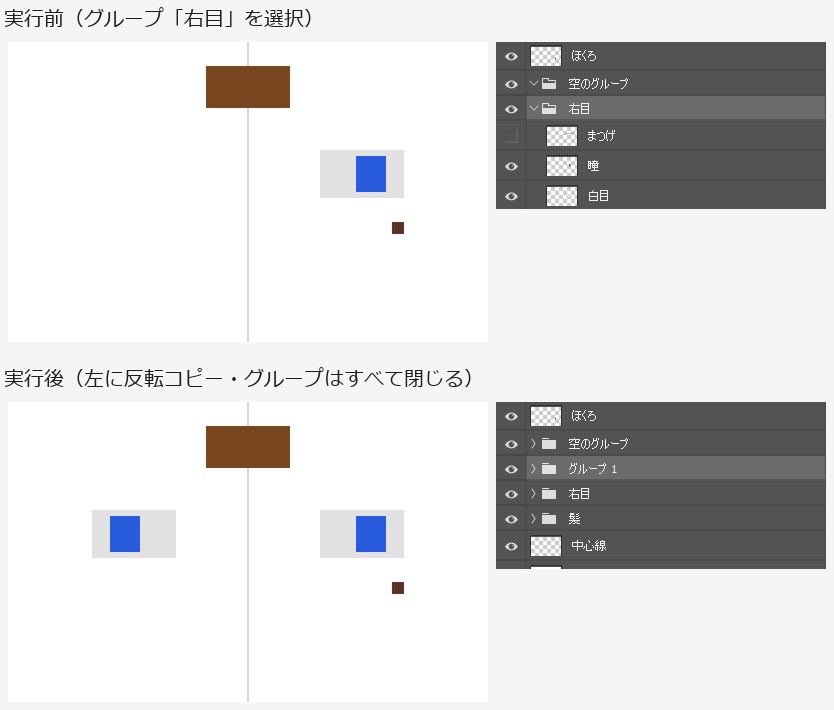
カンバスの右側にあるグループ「右目」(白目・瞳・非表示のまつげの3枚)を選んで実行しました。
横520〜660ピクセルにあった目が、左右反転して横140〜280ピクセルにコピーされました。
800ピクセルのカンバスの中央(400ピクセル)を軸にした、ちょうど左右対称の位置です。
グループの中央で反転するのではないので、グループが中央から離れていても、コピーは反対側に置かれます。
コピーは「グループ 1」(直したコードでは「Group」)というグループの中の「右目 のコピー」というレイヤー1枚で、白目と瞳が1枚に結合されていました。
非表示だった「まつげ」はコピーに入りませんでした。
元のグループ「右目」は、3枚のレイヤーとも実行前のままでした。
直す前のコードでは、実行後は、開いていた「空のグループ」「右目」「髪」を含め、パネルのグループがすべて閉じていました。
直したコードでは、グループの開閉は実行前のままです。
ヒストリーに積まれたのは「反転コピー」1つでした。
2つのグループを選ぶと、まとめて1枚になる
グループ「右目」と「髪」の2つを選んで実行すると、両方の中身が1枚のレイヤー「右目 のコピー」に結合され、「グループ 1」(直したコードでは「Group」)に入りました。
グループごとに別のコピーにはならないので、パーツを分けておきたいときは1つずつ実行してください。
直す前のコードは、通常のレイヤーを選ぶと元のレイヤーが移動した
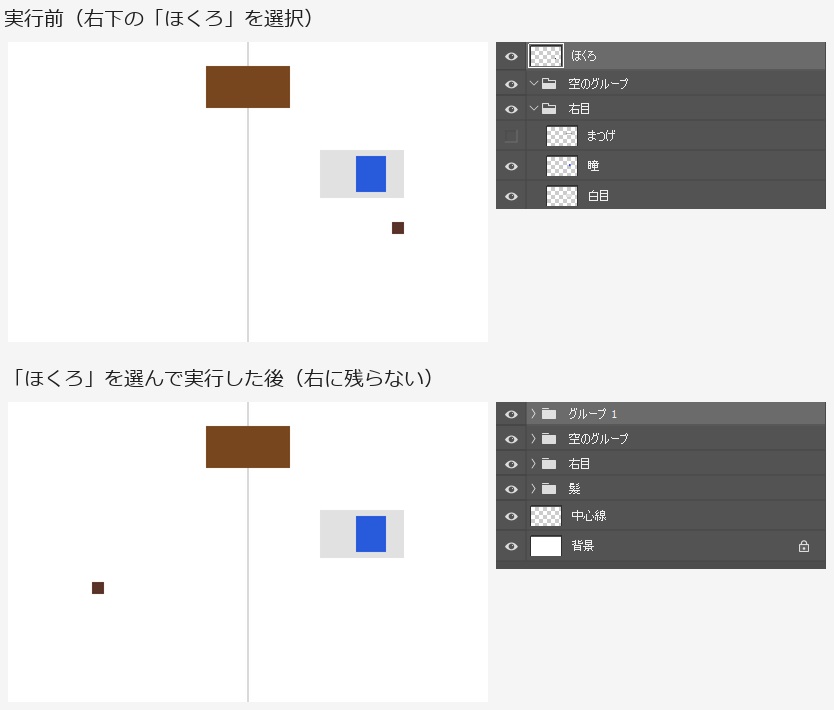
グループではない通常のレイヤー「ほくろ」(横640〜660ピクセル)を選んで実行しました。
警告は出ず、右側の「ほくろ」が無くなり、左右反転した横140〜160ピクセルの位置に「ほくろ」が1枚だけ残りました。
残ったのは、元のレイヤーと複製が1枚に結合されたもので、「グループ 1」の中に入っていました。
1枚だけを選んだ状態での結合は、すぐ下のレイヤーとの結合になるため、複製が元のレイヤーに結合されたと考えられます。
直したコードでは、「グループを選択してください」と警告して止まり、レイヤーは動きません。
通常のレイヤーをコピーしたいときは、先にグループに入れてから実行してください。
直す前のコードは、空のグループで警告が出て、複製が残った
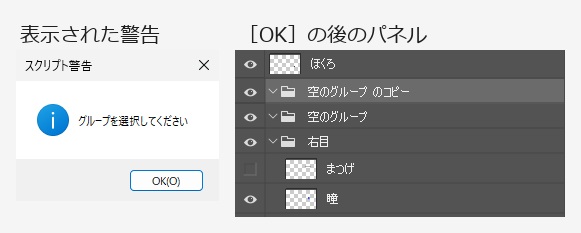
中身の無いグループを選んで実行すると、「グループを選択してください」という警告が出ました。
グループを選んでいても、結合するものが無いので途中で止まり、この警告になりました。
[OK]の後、パネルには「空のグループ のコピー」が残り、ヒストリーには「反転コピー」が1つ積まれていました。
このときは、ほかのグループは閉じませんでした。
直したコードでは、同じ警告が出た後に複製は残りません。
直したコードで確かめた結果
2026年10月20日に、直したコードを同じ練習用の文書で実行しました。
別のスクリプトから実行し、警告の窓の代わりに文字を記録する版で確かめています([参照…]からは実行していません)。
グループ「右目」を選ぶと、直す前と同じ横140〜280ピクセルの位置に「右目 のコピー」ができ、入るグループの名前は「Group」になりました。
開いていたほかのグループは開いたままで、新しい「Group」も開いた状態でした。
「空のグループ」と「髪」を閉じ「右目」を開いた状態で「髪」を選んで実行すると、実行後も「空のグループ」と「髪」は閉じたまま、「右目」は開いたままでした。
「右目」と「髪」の2つを選ぶと、直す前と同じく1枚の「右目 のコピー」になりました。
通常のレイヤー「ほくろ」、背景、グループ「右目」と「ほくろ」を一緒に選んだときは、警告を出して止まり、レイヤーは変わりませんでした。
空のグループ、中のレイヤーがすべて非表示のグループ、非表示のグループを選んだときも、警告を出して止まり、複製は残りませんでした。
直す前のコードでは、中のレイヤーがすべて非表示のグループで中身の無い「右目 のコピー」が、非表示のグループで「髪 のコピー」が残りました。
警告で止まったときも、ヒストリーには「反転コピー」が1つ積まれました。
確かめていないこと
Scriptsフォルダーへの配置と再起動、メニューに出るスクリプト名、ショートカットの設定、「おまけ」のアクションの手順は確かめていません。
レイヤー効果・調整レイヤー・描画モードを含むグループ、スマートオブジェクト、文字レイヤー、アートボード、Mac版と他の版も確かめていません。
この記事で紹介しているコードは、GitHubのMOTOKI-LLC/cg-method-codeにもまとめています。
シェイプや塗りを作る方法は、ほかにも書いています。
まとめ
- 選択したグループを反転コピーできる
- Live2Dのパーツ整理や左右対称のデザインに役立つ
- ショートカットを設定するとさらに作業を効率化できる
作業時間を短縮したいときは、このスクリプトを活用してみてください。
よくある質問:選択したグループを反転コピーする
このスクリプトでは何ができますか?
Photoshopで、選択したグループをすばやく反転コピーできます。左右対称のデザインや、Live2Dの素材作成に役立ちます。
どんなメリットがありますか?
選択したグループを反転コピーでき、左右対称のパーツを効率よく作成できます。ショートカットを設定すれば、キー操作で実行することもできます。
スクリプトはどのように導入しますか?
記事のコードをテキストエディタなどに貼り付けてCGM_ReverseCopyGroup.jsxとして保存し、記事で案内しているフォルダに保存します。保存後にPhotoshopを再起動してください。
どうやって実行しますか?
反転コピーしたいグループを選択し、[ファイル] → [スクリプト] → [CGM_ReverseCopyGroup] を選択します。選択したグループが反転コピーされます。
ショートカットキーはどう設定しますか?
Scriptsフォルダーへの配置と再起動後、[編集]→[キーボードショートカット]で対象を[アプリケーションメニュー]にし、[ファイル]内の[CGM_ReverseCopyGroup]にキーを割り当てます。受け付けられる組み合わせと競合を確認してセットを保存してください。[参照]で一度実行するだけではメニューに登録されません。割り当てとキー実行は実機未確認です。
スクリプトを使わずに反転コピーする方法はありますか?
記事の「おまけ」にアクションの手順を残していますが、今回は実行を確かめていません。元画像の左側を削除・結合する手順なので、保存済みPSDの複製で試してください。左側を削除する手順と、右側を反転コピーする手順の2つに分かれています。手順の詳細は、記事の該当見出しを参照してください。
スクリプトのコードはどこで確認できますか?
記事内に掲載しているほか、GitHubのMOTOKI-LLC/cg-method-codeにもまとめています。
コピーはどこに置かれますか?
カンバスの中央を軸に左右反転した位置に置かれます。
2026年10月19日の確認では、横520〜660ピクセルのグループが、800ピクセルのカンバスの横140〜280ピクセルにコピーされました。
コピーしたグループの中のレイヤーは残りますか?
コピーは1枚のレイヤーに結合されるので、中のレイヤーは分かれません。
非表示のレイヤーはコピーに入りません。
元のグループは、中のレイヤーごとそのまま残ります。
グループではないレイヤーにも使えますか?
使えません。
2026年10月20日に直したコードでは、グループ以外のレイヤーを選ぶと「グループを選択してください」と警告して止まります。
2026年10月19日までのコードでは、通常のレイヤーを選んで実行すると、コピーは残らず、元のレイヤーが反転した位置に移動しました。
先にグループに入れてから実行してください。
メニューやショートカットの表示が記事と違う場合はどうすればよいですか?
Photoshopのバージョンやキーボード設定によって、メニューの名称や配置、ショートカットが変わることがあります。最新の操作手順は、Adobeの公式情報で確認してください。