ファイル名の決まった文字列を置換し、元ファイルを残して別フォルダーへコピーします。
旧版の移動・削除や直接リネームのコードを、変更予定の確認と重複時の停止ができる方式へ更新しました。
入力と出力の例
ZIPは空の練習フォルダーへ展開し、下の手順で指定するサブフォルダーを開いて使います。
input/a/旧 資料 ! & [x].txtとinput/b/旧データ.txtから、output/data/a/新 資料 ! & [x].txtとoutput/data/b/新データ.txtを作ります。
出力ルートのmapping.csvには元の絶対パス、出力名、SHA256が記録されます。
サブフォルダーの構造を保ち、ファイル名の「旧」を「新」へ置換します。
フォルダー名とファイル本文は置換せず、大文字・小文字を区別する文字列置換です。
変更予定を確認してコピーする
- ZIPのreplaceフォルダーで、inputに練習用ファイルを用意する
- 下のPS1をreplace.ps1として保存するか、ZIPの同名ファイルを開く
- BATを実行し、SourceとRelativeOutputの予定だけを確認する
- 問題なければコマンドプロンプトで次の-Apply付きコマンドを実行する
- output/dataの内容とmapping.csvを確認し、inputが残っていることを確かめる
Windows PowerShell 5.1用のPS1はUTF-8(BOM付き)で保存します。
BATのRemoteSigned指定は起動したプロセスだけに適用し、ユーザーやPC全体の実行ポリシーは変更しません。
ダウンロードしたPS1が署名エラーになる場合は内容と出所を確認し、対象ファイルのプロパティからブロックを解除します。
組織のポリシーで実行できない場合は管理者へ確認し、ポリシーを回避して実行しないでください。
@echo off
setlocal DisableDelayedExpansion
powershell.exe -NoProfile -ExecutionPolicy RemoteSigned -File "%~dp0replace.ps1"
exit /b %errorlevel%
BATはreplace.batとしてPS1と同じ場所へ保存し、プレビュー用の起動に使います。
powershell.exe -NoProfile -ExecutionPolicy RemoteSigned -File "replace.ps1" -Apply
上の実行コマンドはreplace.ps1のあるフォルダーで使います。
param([string]$Source,
      [string]$Output,
      [string]$Old = '旧', [string]$New = '新',
      [switch]$Apply)
if ([string]::IsNullOrEmpty($Old)) { throw 'Old must not be empty' }
if (-not $Source) { $Source = Join-Path $PSScriptRoot 'input' }
if (-not $Output) { $Output = Join-Path $PSScriptRoot 'output' }

$ErrorActionPreference = 'Stop'
$rootItem = Get-Item -LiteralPath $Source
if (-not $rootItem.PSIsContainer) { throw 'Source must be a folder' }
$root = $rootItem.FullName.TrimEnd('\')
$out = [IO.Path]::GetFullPath($Output).TrimEnd('\')
if ($out -eq $root -or $out.StartsWith($root + '\', [StringComparison]::OrdinalIgnoreCase)) {
    throw 'Output must be outside Source'
}
if (Test-Path -LiteralPath $out) { throw 'Output already exists; choose a new name' }
$entries = @(Get-ChildItem -LiteralPath $root -Recurse -Force)
if (($rootItem.Attributes -band [IO.FileAttributes]::ReparsePoint) -or
    @($entries | Where-Object { $_.Attributes -band [IO.FileAttributes]::ReparsePoint }).Count) {
    throw 'Links/junctions are not supported'
}
$files = @($entries | Where-Object { -not $_.PSIsContainer })

if (-not $files.Count) { throw 'No matching files' }

$i = 0
$plan = @(foreach ($file in $files) {
    $i++
    $name = $file.Name.Replace($Old, $New)
    if ([string]::IsNullOrWhiteSpace($name) -or $name.IndexOfAny([IO.Path]::GetInvalidFileNameChars()) -ge 0 -or
        $name -match '[. ]$|^(CON|PRN|AUX|NUL|COM[1-9]|LPT[1-9])(\.|$)') { throw 'Invalid output name' }
    $relative = [IO.Path]::Combine($file.DirectoryName.Substring($root.Length).TrimStart('\'), $name)
    [pscustomobject]@{
        Source = $file.FullName
        RelativeOutput = $relative
        Destination = [IO.Path]::Combine($out, 'data', $relative)
        SHA256 = (Get-FileHash -LiteralPath $file.FullName -Algorithm SHA256).Hash
    }
})
if (@($plan | Group-Object Destination | Where-Object Count -gt 1).Count) {
    throw 'Duplicate destination names; nothing copied'
}
$plan | Format-List Source, RelativeOutput
if (-not $Apply) { Write-Host 'Preview only'; return }
[IO.Directory]::CreateDirectory($out) | Out-Null
$plan | Export-Csv -LiteralPath ([IO.Path]::Combine($out, 'mapping.csv')) -NoTypeInformation -Encoding UTF8
foreach ($row in $plan) {
    [IO.Directory]::CreateDirectory([IO.Path]::GetDirectoryName($row.Destination)) | Out-Null
    [IO.File]::Copy($row.Source, $row.Destination, $false)
    if ((Get-FileHash -LiteralPath $row.Destination -Algorithm SHA256).Hash -ne $row.SHA256) {
        throw 'Hash mismatch; keep originals and inspect output'
    }
}
Write-Host ('Copied: ' + $plan.Count)
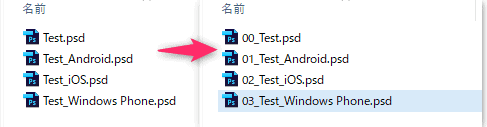
名前に応じて分類番号を付ける場合
Android、iOS、Windows Phoneを含む名前へ分類番号を付ける場合は、$nameを代入する1行だけを次の3行へ置き換えます。
$base = $file.Name -replace '^(00|01|02|03)_', ''
$prefix = if ($base.Contains('Android')) { '01_' } elseif ($base.Contains('iOS')) { '02_' } elseif ($base.Contains('Windows Phone')) { '03_' } else { '00_' }
$name = $prefix + $base
判定はAndroid、iOS、Windows Phone、その他の順で、大文字・小文字を区別します。
既存の00_から03_までの接頭辞を外してから付け直すため、01_Android.pngに01_が重なりません。
失敗したときの確認と戻し方
Duplicate destination namesが出たら、同じ出力名になるファイルを一覧で確認し、入力のコピー側で名前を分けてからやり直します。
Output already existsが出たら既存の出力を上書きせず、-Outputで新しい絶対パスを指定します。
Sourceの内側を出力先にした場合、入力が空の場合、リンクやジャンクションがある場合は停止します。
コピー中の権限エラーや容量不足、ハッシュ不一致では出力が一部だけ残るため、元データを使い続け、出力は未完成として確認します。
戻すときは変更していないinputを利用し、途中のoutputを制作データへ置き換えないでください。
この方法は通常ファイルの内容をコピーし、ACLや代替データストリームなどを含む完全なバックアップを作るものではありません。
2026年10月2日に実際のWindows PowerShell 5.1で、日本語・空白・!・&・角括弧を含む名前、プレビュー、コピー結果と元データの保持を確認しました。
Explorerのクリック操作とネットワーク共有上の処理は今回の検証に含みません。
コマンド仕様:Microsoft公式の実行ポリシー、File.Copyの上書き指定(2026年10月2日確認)。
従来の操作画面
以下は旧版の画面で、リスト入力や元の操作例の参考として残しています。
現在の手順は上のコードと入力・出力例を使い、CSVの拡張子変更や元ファイルの直接リネームは行いません。
業務効率化に役立つほかのツールは、以下のリンクから確認できます。

Windowsバッチや自動化に関する関連記事もあわせて参考にしてください。
まとめ
置換後の名前と重複をプレビューで確認し、元データを残して出力します。